

Overview
Supabase and Trigger.dev can be used together to create powerful workflows triggered by real-time changes in your database tables:- A Supabase Database Webhook triggers an Edge Function when a row including a video URL is inserted into a table
-
The Edge Function triggers a Trigger.dev task, passing the
video_urlcolumn data from the new table row as the payload - The Trigger.dev task then:
Prerequisites
- Ensure you have the Supabase CLI installed
- Since Supabase CLI version 1.123.4, you must have Docker Desktop installed to deploy Edge Functions
- Ensure TypeScript is installed
- Create a Trigger.dev account
- Create a new Trigger.dev project
- Create a new Deepgram account and get your API key from the dashboard
GitHub repo
View the project on GitHub
Click here to view the full code for this project in our examples repository on GitHub. You can
fork it and use it as a starting point for your own project.
Initial setup
1
Optional step 1: create a new Supabase project
If you already have a Supabase project on your local machine you can skip this step.
If you are using VS Code, ensure to answer ‘y’ when asked to generate VS Code settings for Deno,
and install any recommended extensions.
2
Optional step 2: create a package.json file
If your project does not already have This is required for the Trigger.dev SDK to work correctly.
package.json file (e.g. if you are using Deno), create it manually in your project’s root folder. If your project has a
package.json file you can skip this step.package.json
Update your Typescript version to the latest version available.
3
Run the CLI init command
The easiest way to get started is to use the CLI. It will add Trigger.dev to your existing project, create a It will do a few things:
/trigger folder and give you an example task.Run this command in the root of your project to get started:- Log you into the CLI if you’re not already logged in.
- Create a
trigger.config.tsfile in the root of your project. - Ask where you’d like to create the
/triggerdirectory. - Create the
/triggerdirectory with an example task,/trigger/example.[ts/js].
Create a new table in your Supabase database
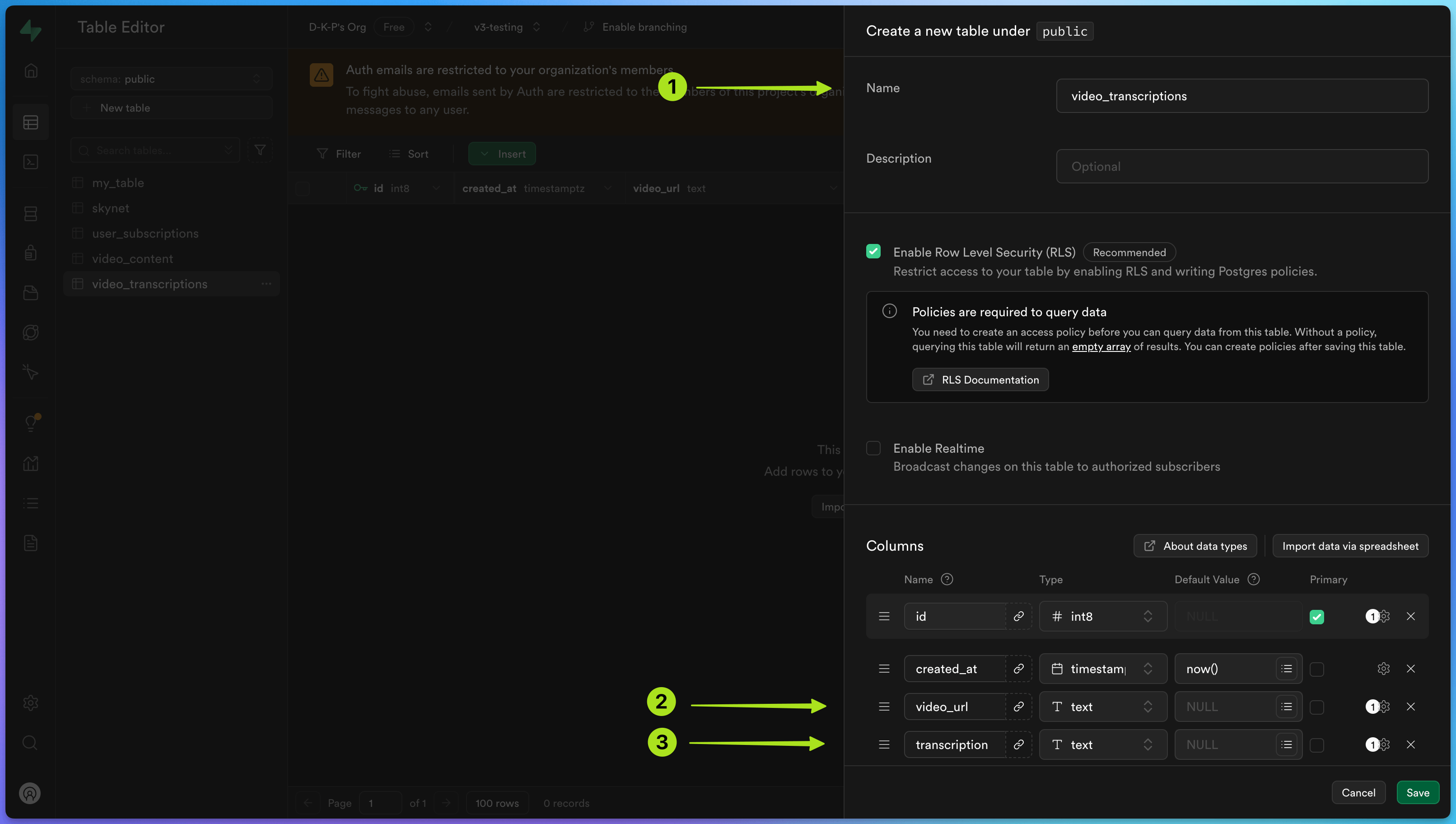
First, in the Supabase project dashboard, you’ll need to create a new table to store the video URL and transcription. To do this, click on ‘Table Editor’ in the left-hand menu and create a new table.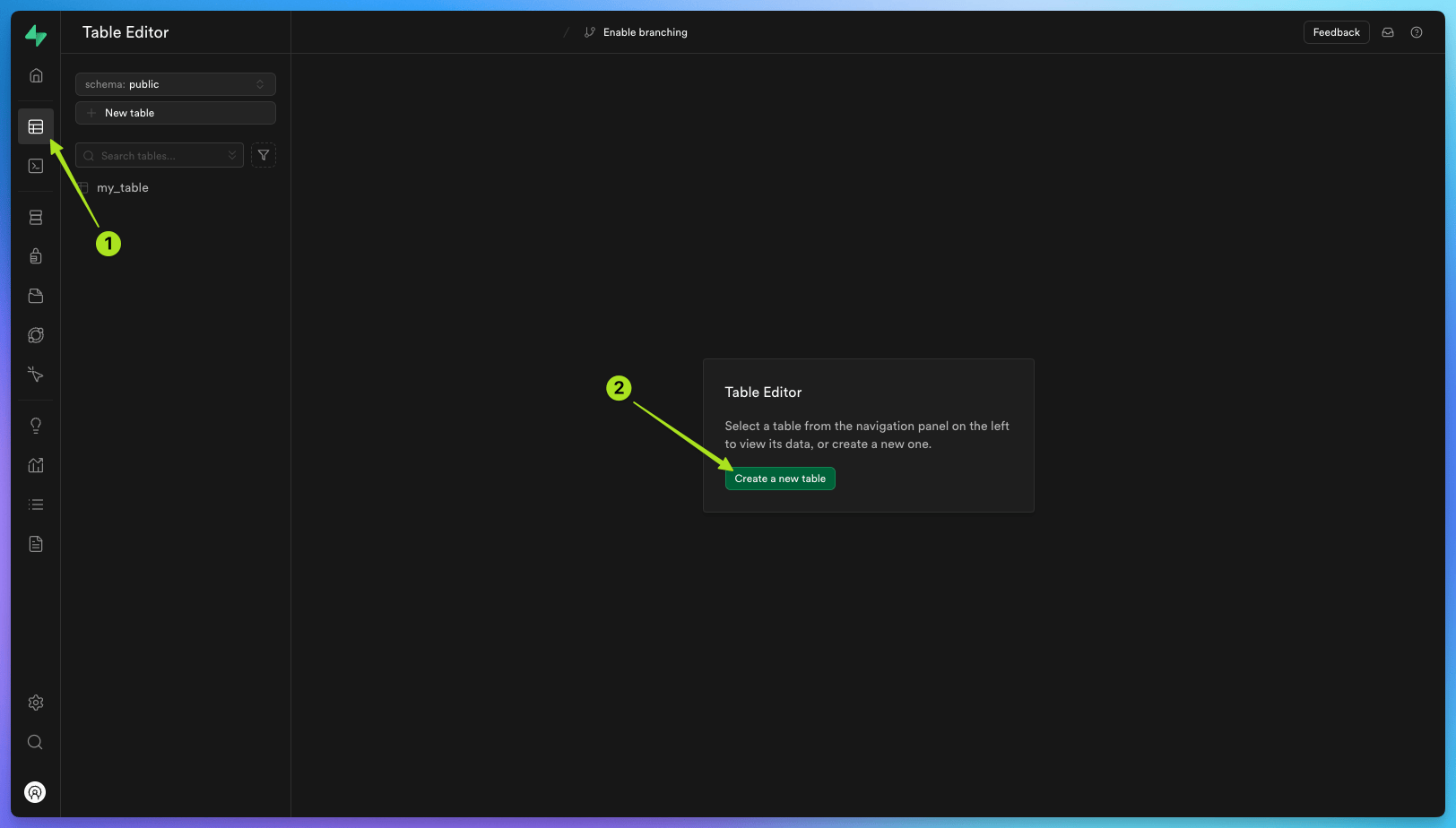 Call your table
 video_transcriptions.
Add two new columns, one called video_url with the type text , and another called transcription, also with the type text .
Create and deploy the Trigger.dev task
Generate the Database type definitions
To allow you to use TypeScript to interact with your table, you need to generate the type definitions for your Supabase table using the Supabase CLI. Replace
<project-ref> with your Supabase project reference ID. This can be found in your Supabase project settings under ‘General’. Create the transcription task
Create a new task file in your/trigger folder. Call it videoProcessAndUpdate.ts.
This task takes a video from a public video url, extracts the audio using FFmpeg and transcribes the audio using Deepgram. The transcription summary will then be updated back to the original row in the video_transcriptions table in Supabase.
You will need to install some additional dependencies for this task:
/trigger/videoProcessAndUpdate.ts
To learn more about how to properly configure Supabase auth for Trigger.dev tasks, please refer to
our Supabase Authentication guide. It demonstrates
how to use JWT authentication for user-specific operations or your service role key for
admin-level access.
Adding the FFmpeg build extension
Before you can deploy the task, you’ll need to add the FFmpeg build extension to yourtrigger.config.ts file.
trigger.config.ts
Build extensions allow you to hook into the build system and
customize the build process or the resulting bundle and container image (in the case of
deploying). You can use pre-built extensions or create your own.
You’ll also need to add
@trigger.dev/build to your package.json file under devDependencies
if you don’t already have it there.fluent-ffmpeg you’ll also need to add them to external in your trigger.config.ts file.
Add your Deepgram and Supabase environment variables to your Trigger.dev project
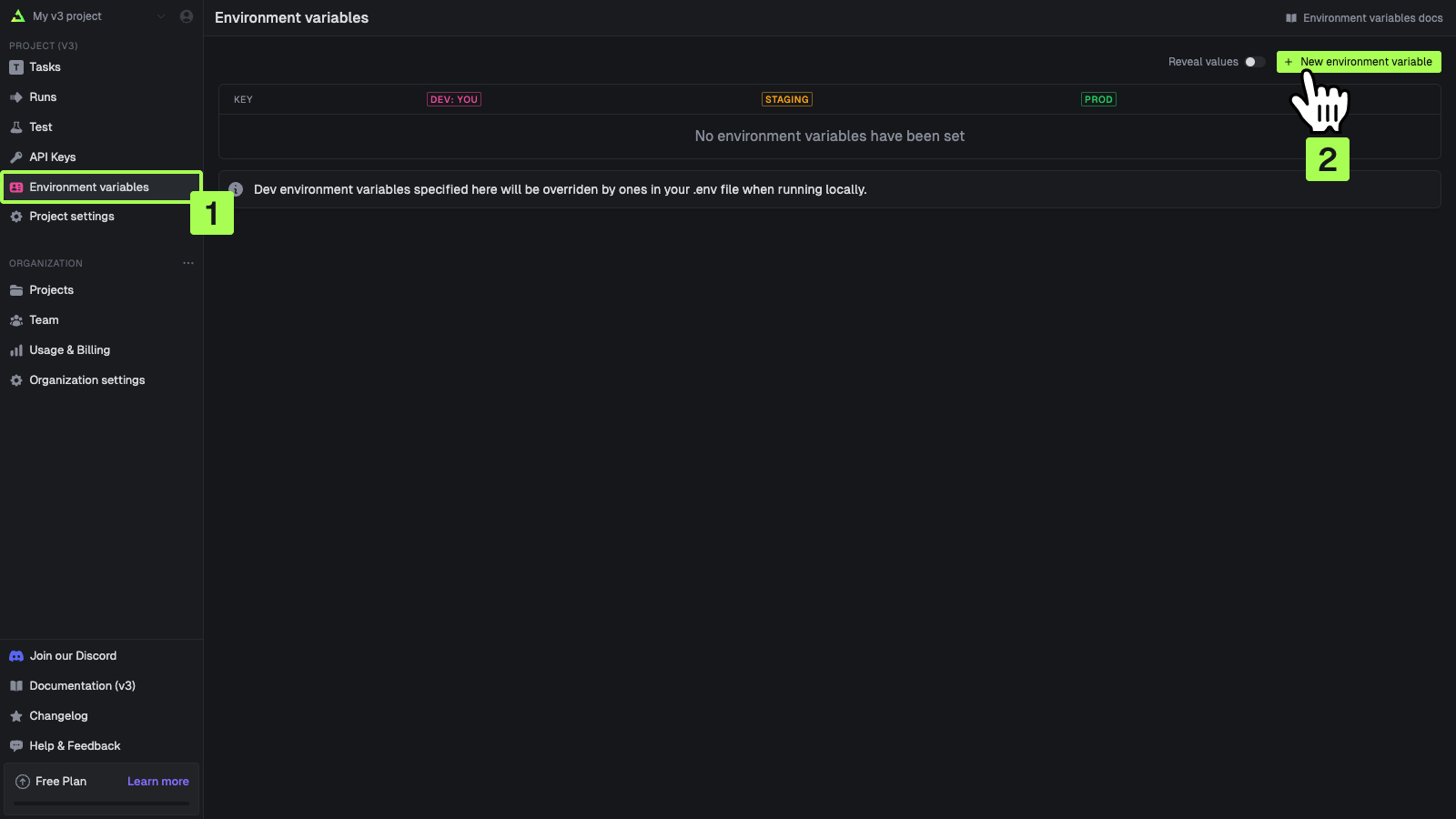
You will need to add yourDEEPGRAM_SECRET_KEY, SUPABASE_PROJECT_URL and SUPABASE_SERVICE_ROLE_KEY as environment variables in your Trigger.dev project. This can be done in the ‘Environment Variables’ page in your project dashboard.
Deploying your task
Now you can now deploy your task using the following command:Create and deploy the Supabase Edge Function
Add your Trigger.dev prod secret key to the Supabase dashboard
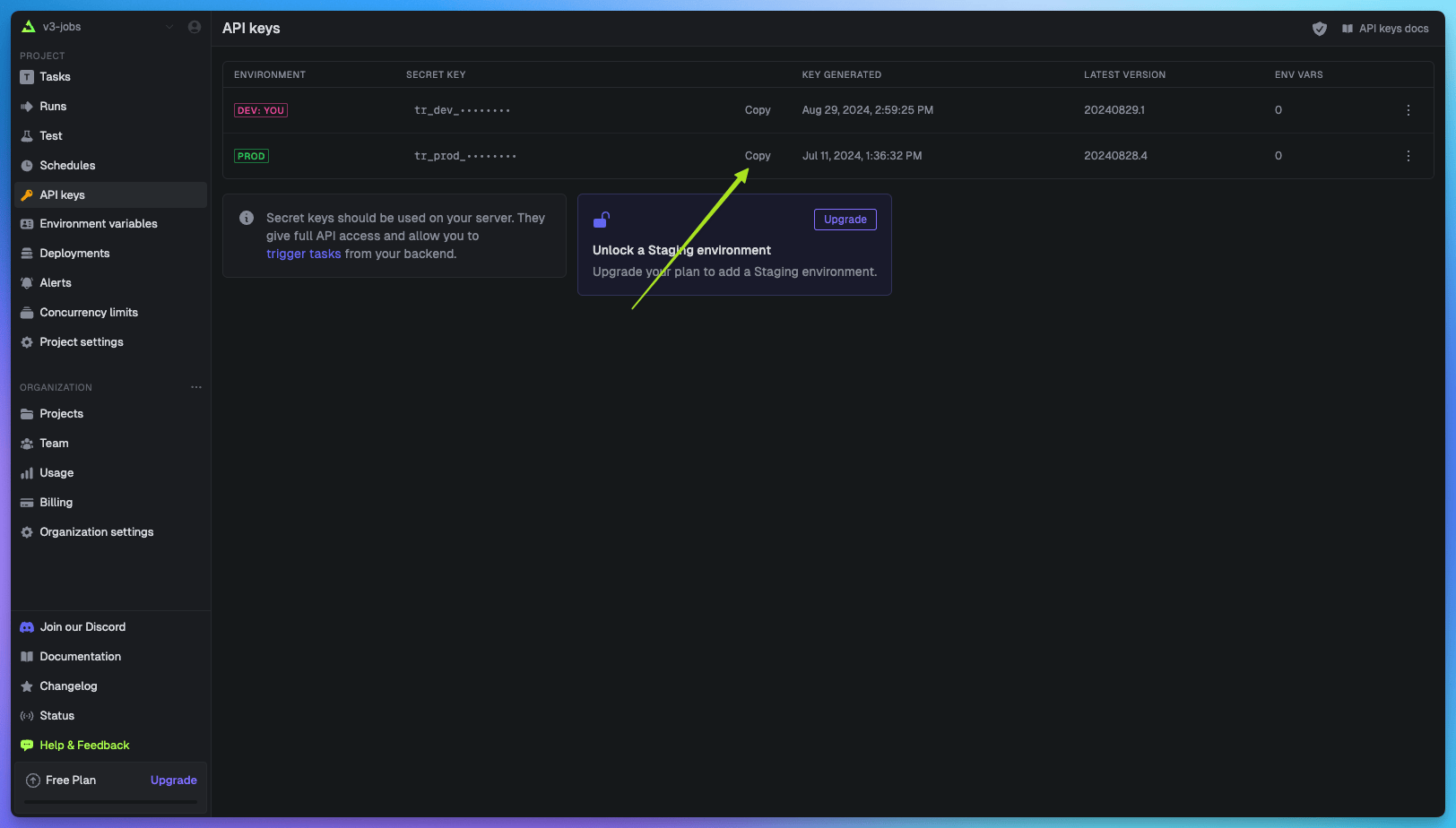
Go to your Trigger.dev project dashboard and copy theprod secret key from the API keys page.
 Then, in Supabase, select the project you want to use, navigate to ‘Project settings’ , click ‘Edge Functions’ in the configurations menu, and then click the ‘Add new secret’ button.
Add
Then, in Supabase, select the project you want to use, navigate to ‘Project settings’ , click ‘Edge Functions’ in the configurations menu, and then click the ‘Add new secret’ button.
Add TRIGGER_SECRET_KEY with the pasted value of your Trigger.dev prod secret key.
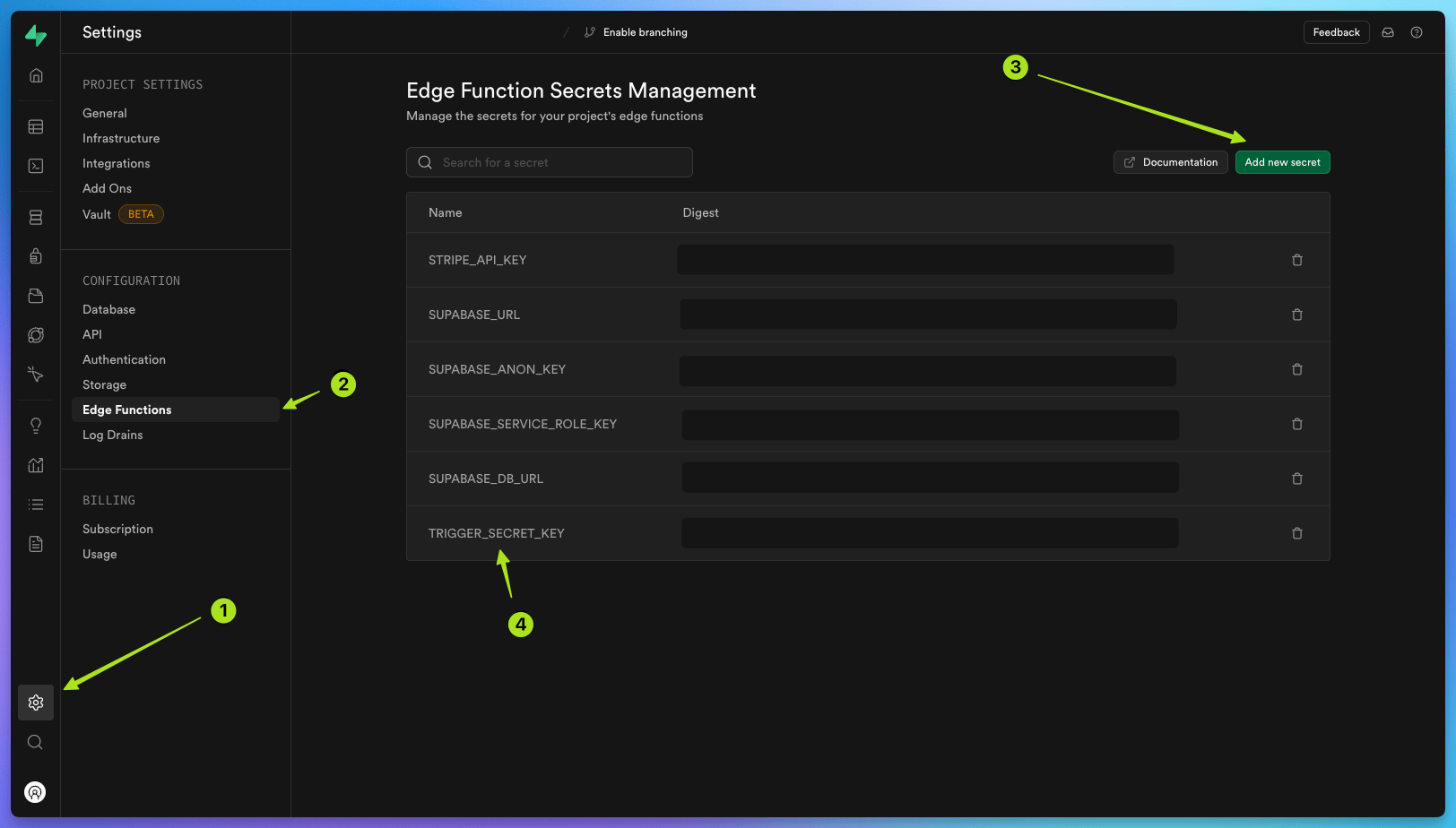
Create a new Edge Function using the Supabase CLI
Now create an Edge Function using the Supabase CLI. Call itvideo-processing-handler. This function will be triggered by the Database Webhook.
functions/video-processing-handler/index.ts
Tasks in the
trigger folder use Node, so they must stay in there or they will not run,
especially if you are using a different runtime like Deno. Also do not add “npm:” to imports
inside your task files, for the same reason.Deploy the Edge Function
Now deploy your new Edge Function with the following command:prod secret key to, and once complete you should see your new Edge Function deployment in your Supabase Edge Functions dashboard.
There will be a link to the dashboard in your terminal output.
Create the Database Webhook
In your Supabase project dashboard, click ‘Project settings’ , then the ‘API’ tab , and copy theanon public API key from the table .
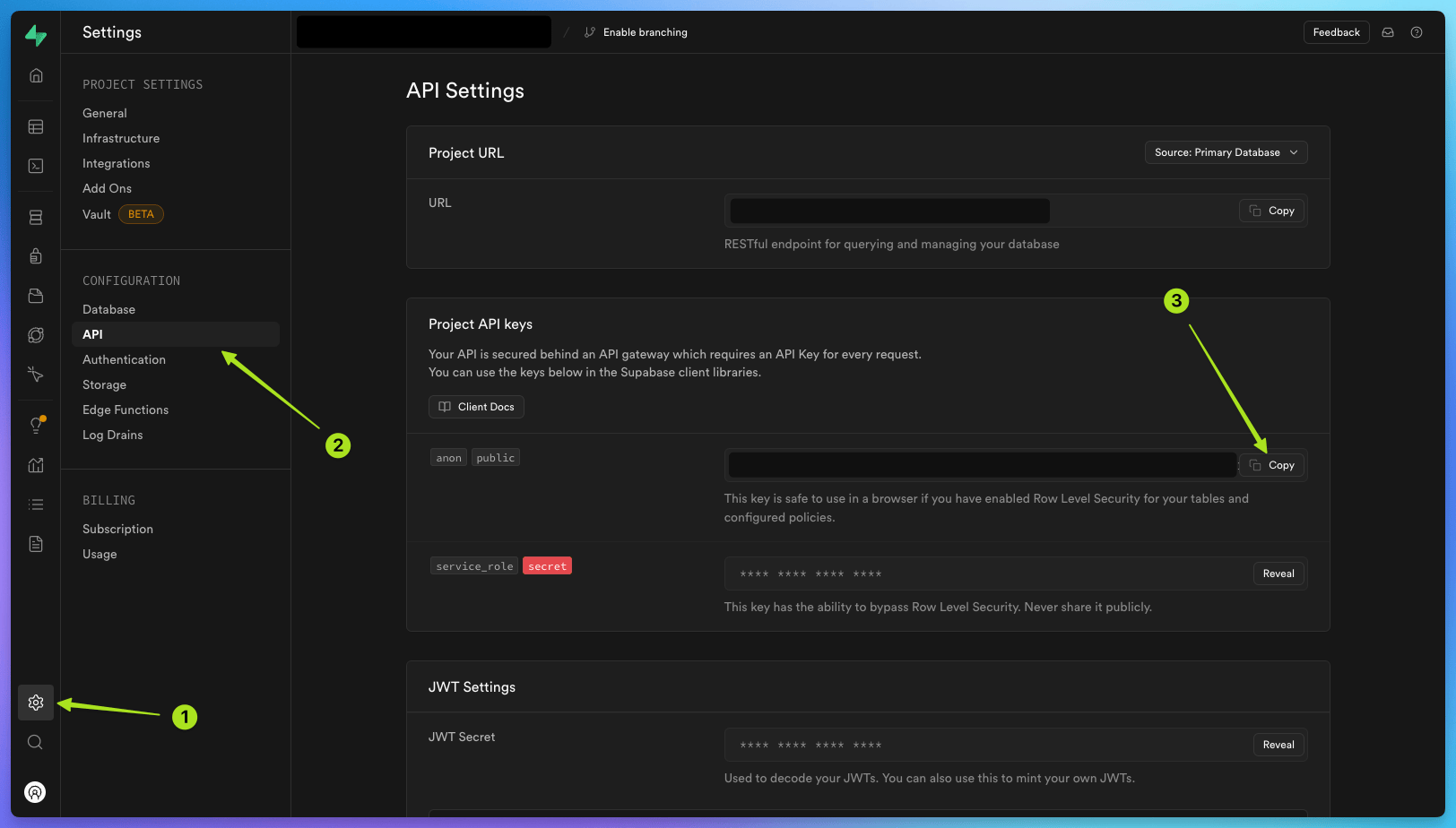 Then, go to ‘Database’ click on ‘Webhooks’ , and then click ‘Create a new hook’ .
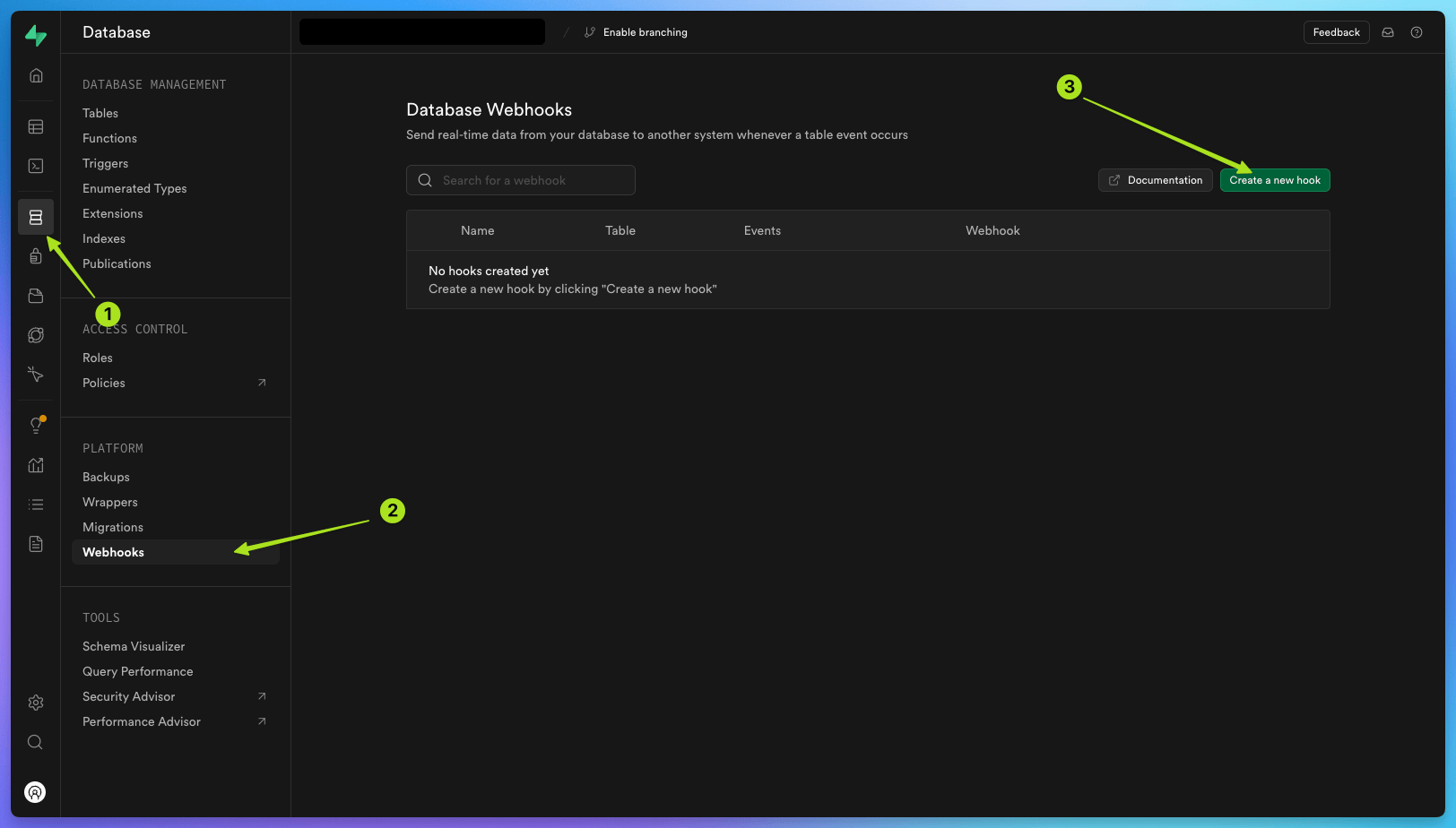 Call the hook
 edge-function-hook.
Select the new table you have created:
public video_transcriptions.
Choose the insert event.
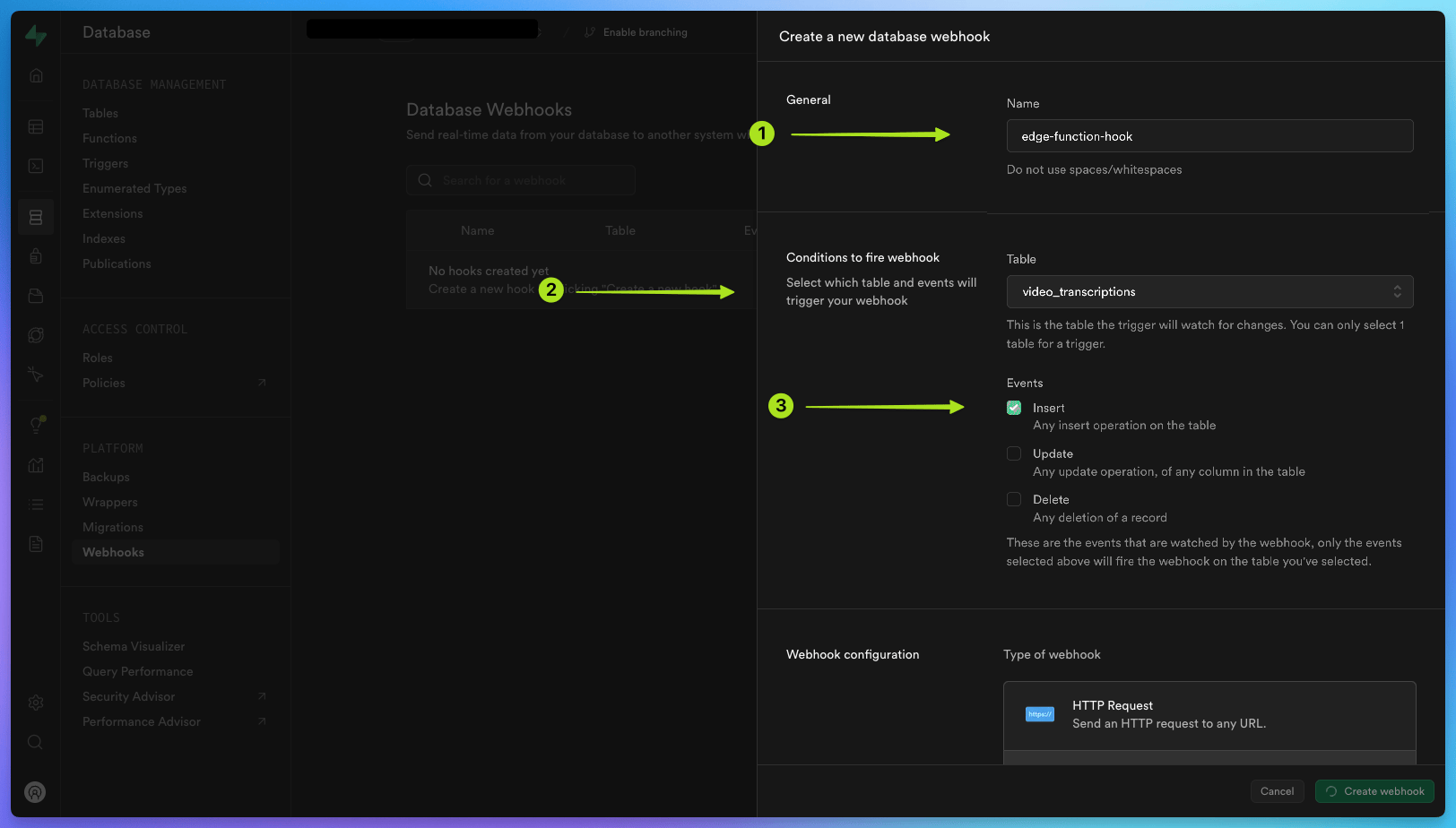 Under ‘Webhook configuration’, select
‘Supabase Edge Functions’
Under ‘Edge Function’, choose
Under ‘Webhook configuration’, select
‘Supabase Edge Functions’
Under ‘Edge Function’, choose POST
and select the Edge Function you have created: video-processing-handler.
Under ‘HTTP Headers’, add a new header with the key Authorization and the value Bearer <your-api-key> (replace <your-api-key> with the anon public API key you copied earlier).
Supabase Edge Functions require a JSON Web Token JWT
in the authorization header. This is to ensure that only authorized users can access your edge
functions.
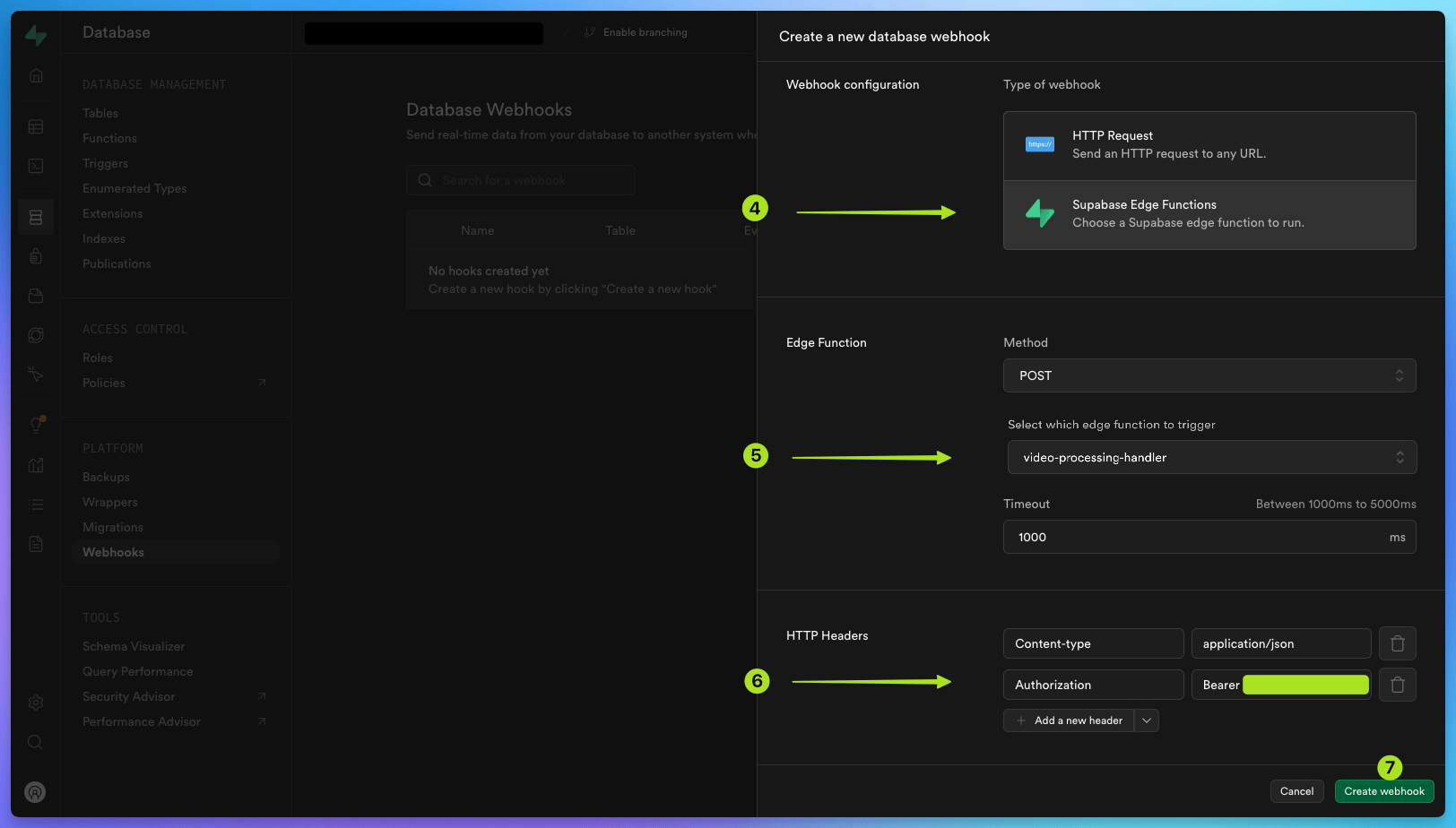 Your Database Webhook is now ready to use.
Triggering the entire workflow
Yourvideo-processing-handler Edge Function is now set up to trigger the videoProcessAndUpdate task every time a new row is inserted into your video_transcriptions table.
To do this, go back to your Supabase project dashboard, click on ‘Table Editor’ in the left-hand menu, click on the video_transcriptions table , and then click ‘Insert’, ‘Insert Row’ .
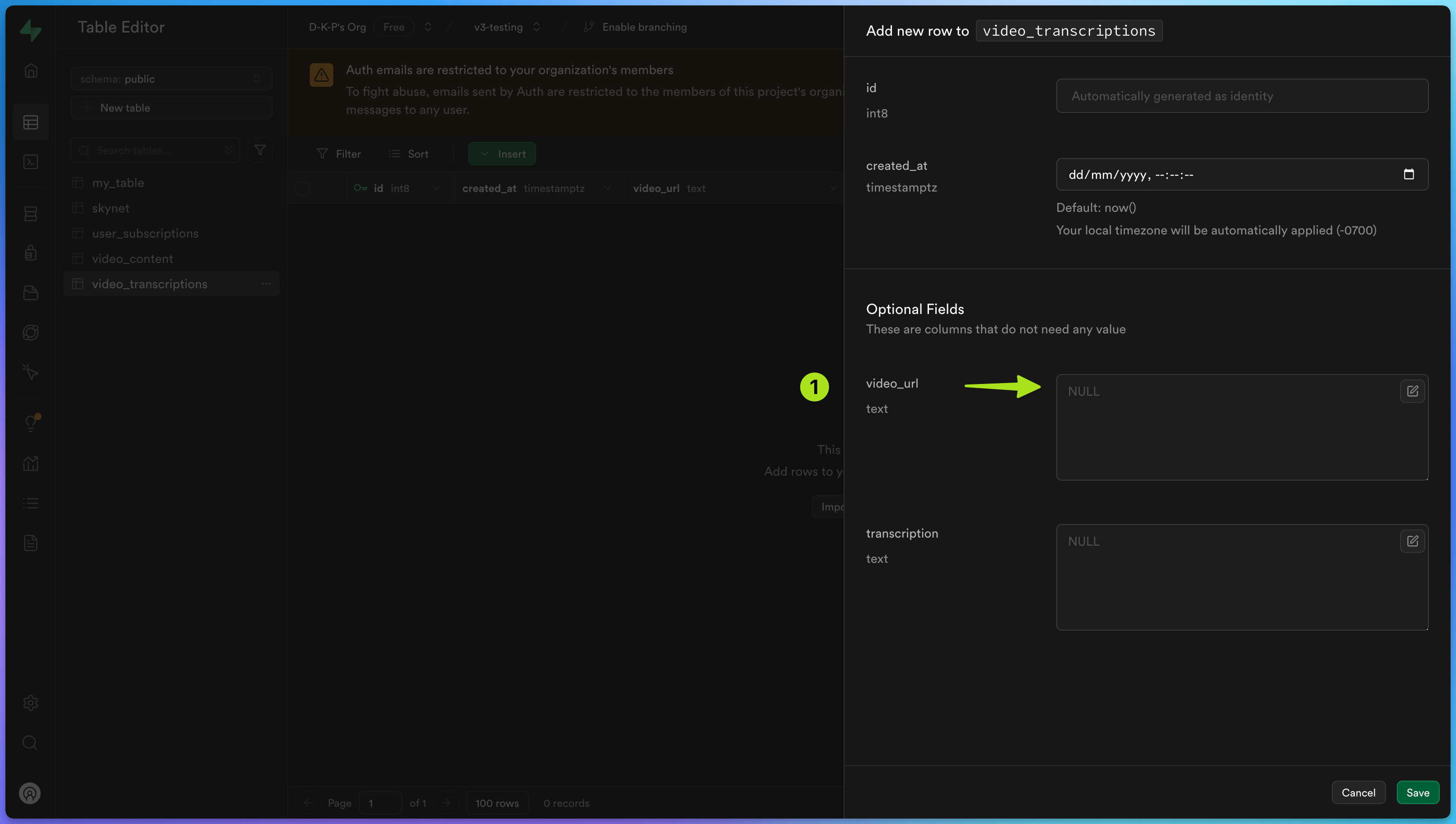
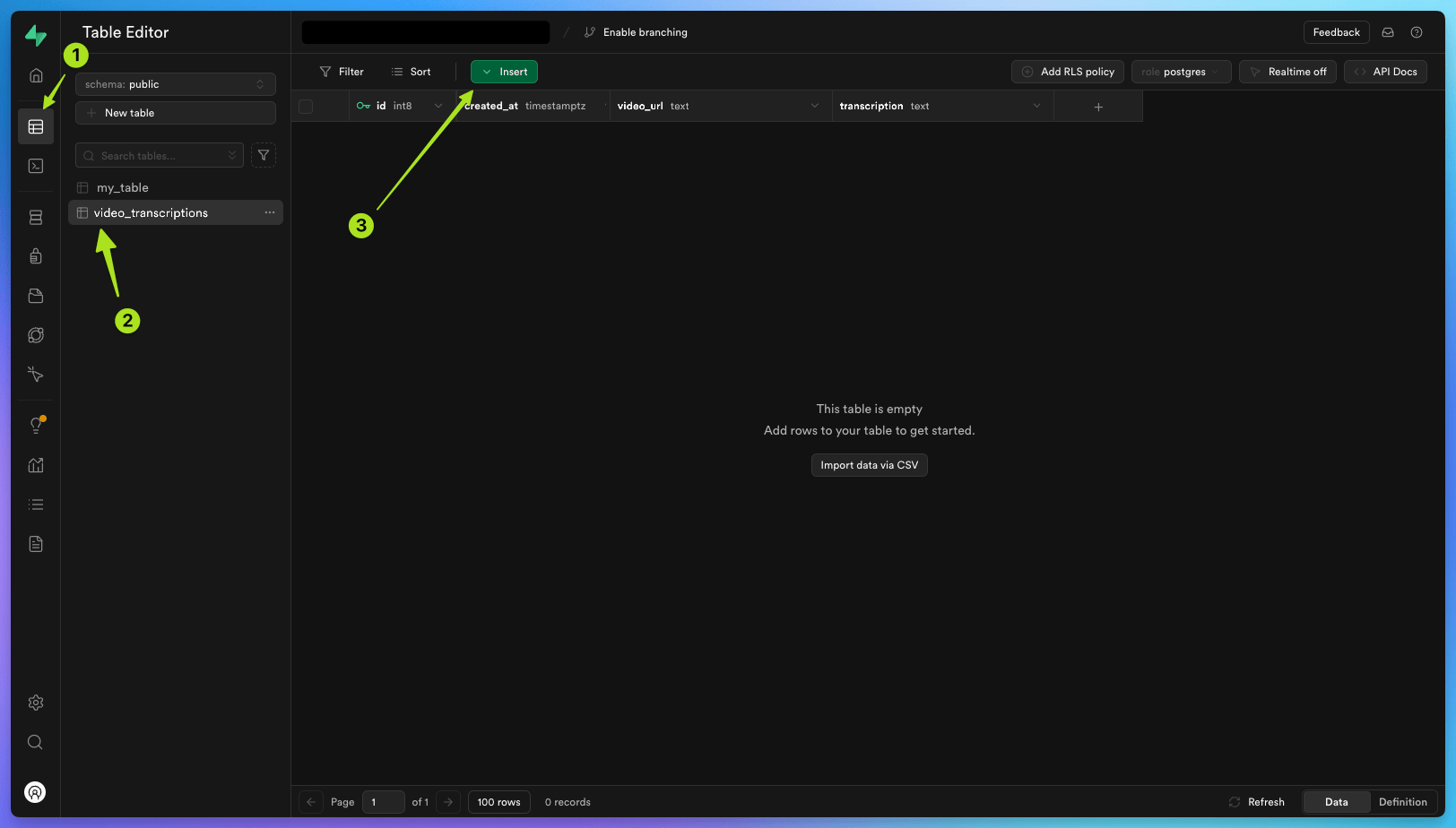 Add a new item under
 video_url, with a public video url. .
You can use the following public video URL for testing: https://content.trigger.dev/Supabase%20Edge%20Functions%20Quickstart.mp4.
 Once the new table row has been inserted, check your cloud.trigger.dev project ‘Runs’ list and you should see a processing
 videoProcessAndUpdate task which has been triggered when you added a new row with the video url to your video_transcriptions table.
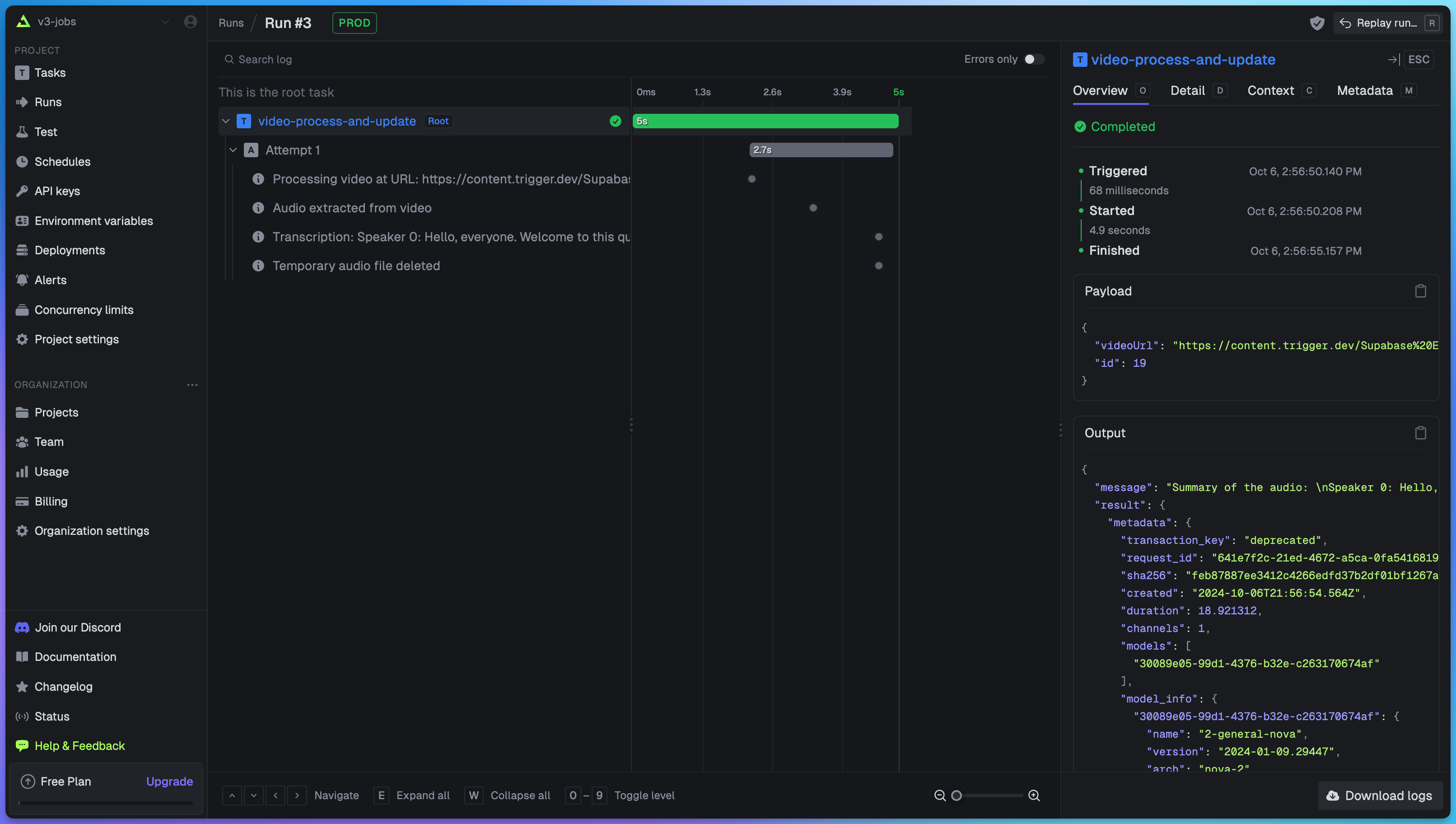 Once the run has completed successfully, go back to your Supabase
 video_transcriptions table, and you should see that in the row containing the original video URL, the transcription has now been added to the transcription column.
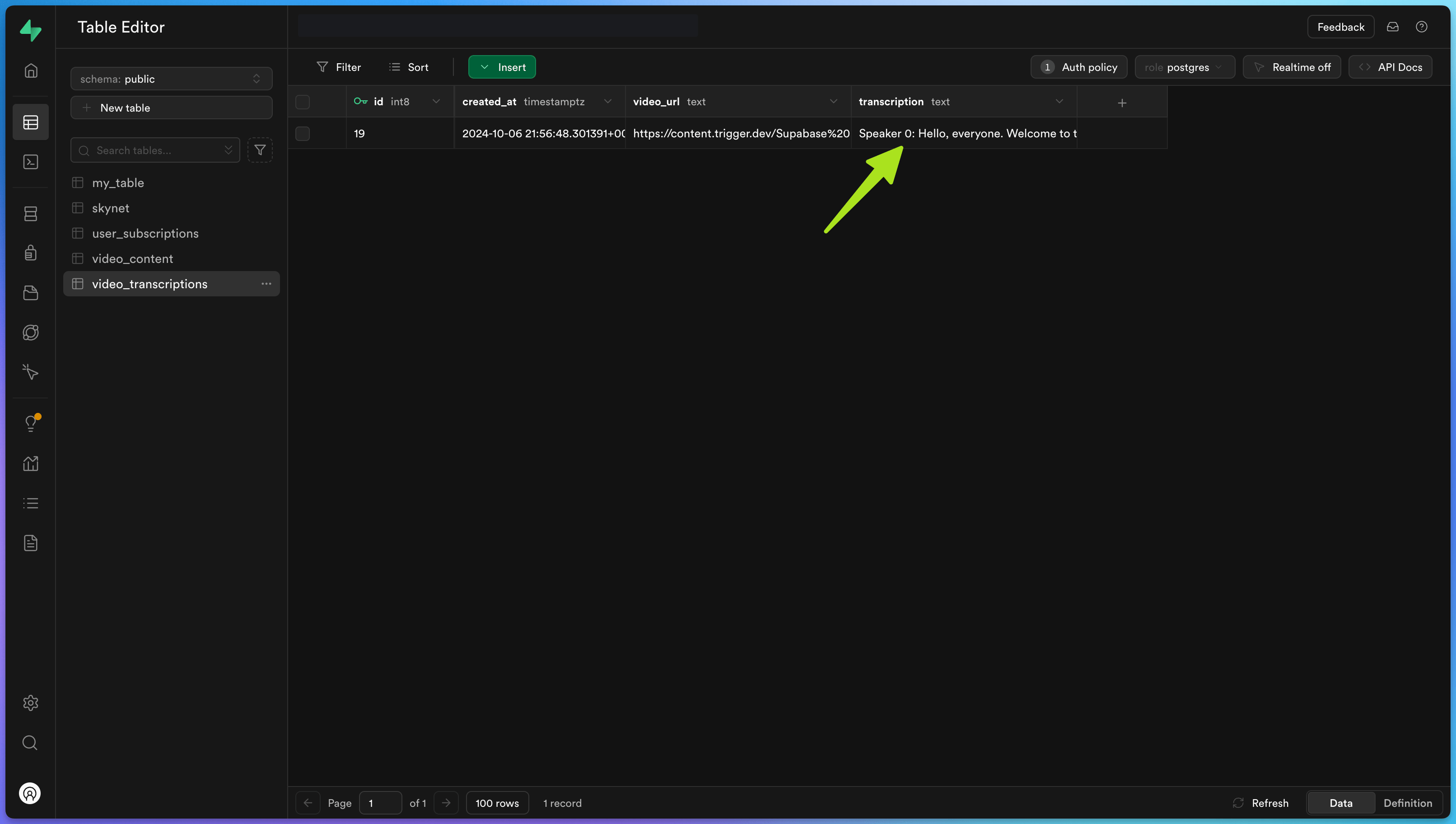 Congratulations! You have completed the full workflow from Supabase to Trigger.dev and back again.
Learn more about Supabase and Trigger.dev
Full walkthrough guides from development to deployment
Edge function hello world guide
Learn how to trigger a task from a Supabase edge function when a URL is visited.
Database webhooks guide
Learn how to trigger a task from a Supabase edge function when an event occurs in your database.
Supabase authentication guide
Learn how to authenticate Supabase tasks using JWTs for Row Level Security (RLS) or service role
keys for admin access.
Task examples with code you can copy and paste
Supabase database operations
Run basic CRUD operations on a table in a Supabase database using Trigger.dev.
Supabase Storage upload
Download a video from a URL and upload it to Supabase Storage using S3.